Configuration
Please check out the installation guide and getting started before configuring the addon.
This pages covers settings and options that can be altered to make good use of the extension. See advanced use case to add more models or configure new providers.
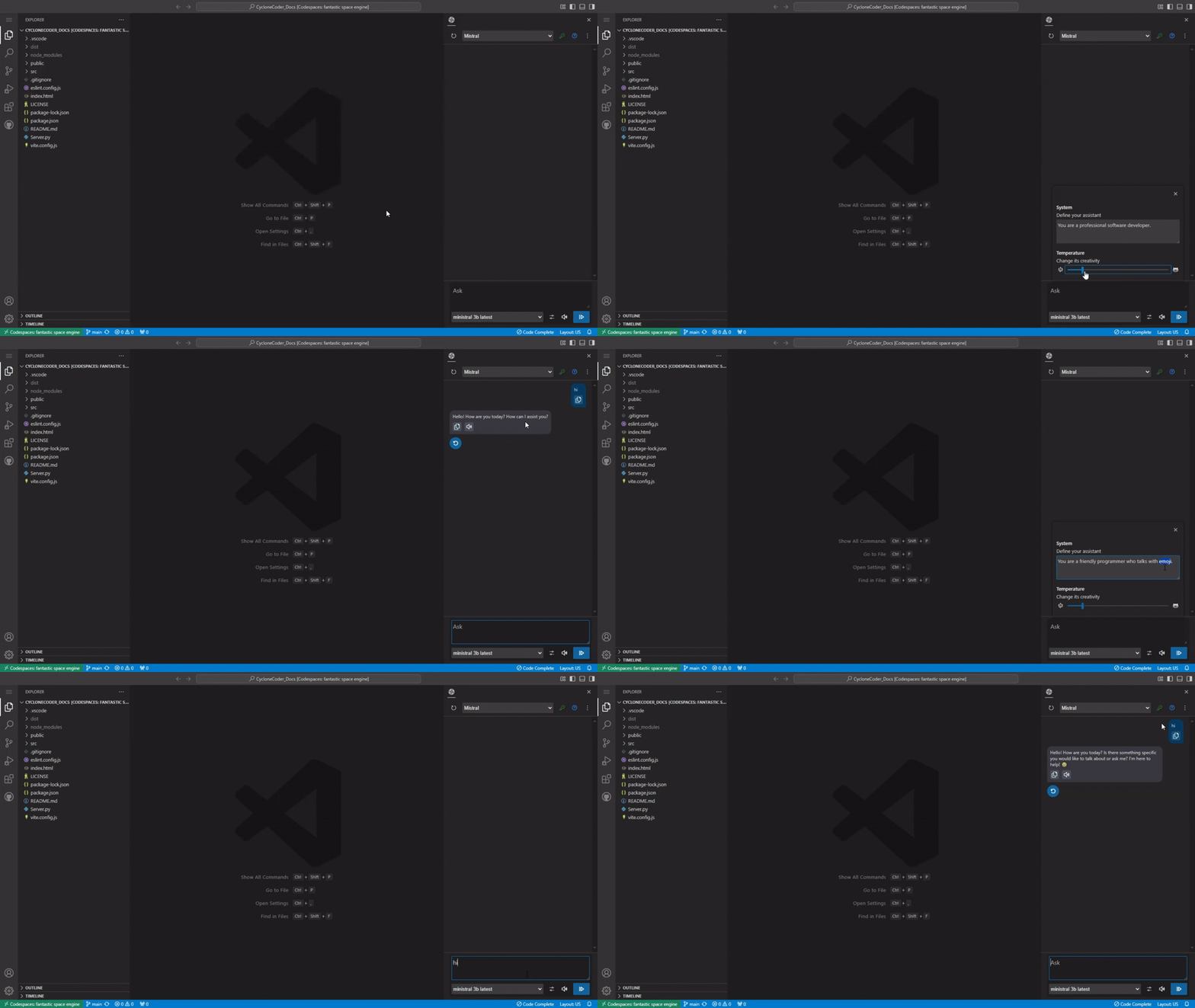
Chat Settings
You can change or update the API key by clicking the api key button on top right corner of chat window anytime.
ℹ️
Mistral will use the same key provided for chat.
Use
button on the top right corner opens additional chat settings where you can update few more settings.
- You can change the Provider
API URL. Chat contextallows you to say the number of latestchatsfrom current history to used.⚠️Both the user and assistant chats are counted while considering the chat history.- Input tokens will represent number of tokens that gets used as context for generating response of each chat.
- Number of
new tokensthat get generated on each response.
ℹ️
Decrease Tokens to generate will generate short but quick AI response.
Inline Completion
- Press
Ctrl + Shift + Ato open the chat interface. - Click the
Code Completebutton on bottom bar to open settings. - Enable
code completion check boxto activate inline code suggestions. - Select the
Completion Providerand the availablecode completion model.
⚠️
Mistral code complete model will use the same key provided for the chat.
- Code temperature will change the
creativityof the suggestion model. - Timing will the
wait timebefore each trigger of completion.
Questions or Feedback?
🐞
Cyclone Coder is still under development, and your input is valuable!
Have a question or feedback? Feel free to open an issue!